Adding & actioning items
Day-to-day, SharedShoppingList has two sides: anyone adds items while browsing, and the shopper works through them.
Adding an item from a product page
- On a supported store, open any product page.
- Click the small green cart button the extension adds to the page. It shows its Add to shared list label when it first appears, then tucks it away — hover it (or Tab to it) to see the label again.
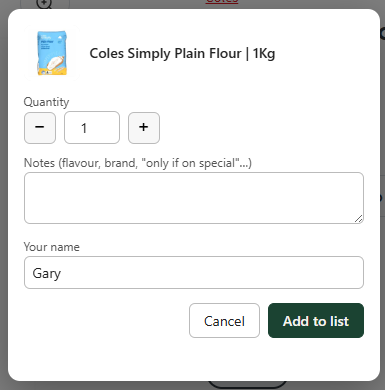
- A small window appears with the product name and picture. Pick which list it goes on, adjust the quantity or add a note if you like, and click Add to list.
- You'll see Added to "…" ✓ — it's now on everyone's list.
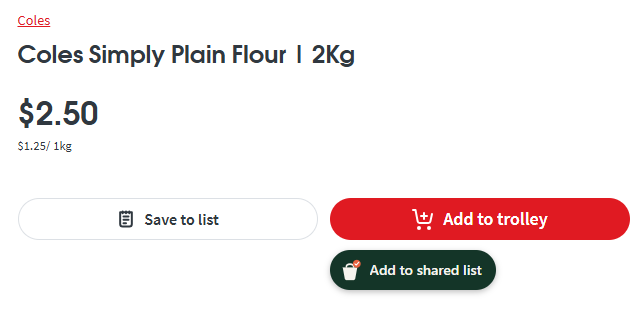
Settings → Button on store pages moves it: keep it next to Add to Cart, float it in a corner of your choice, or hide it entirely and add things from the popup instead (see below). The change applies to store pages you already have open.
Quick-add: one click, no dialog
If you just want one of something and have nothing to add in a note, skip the dialog: while you're on a product page, open the extension popup from the toolbar. The product appears at the top with a + Add 1 button — one click puts it on the list you have selected, quantity 1, no note, under your saved name.
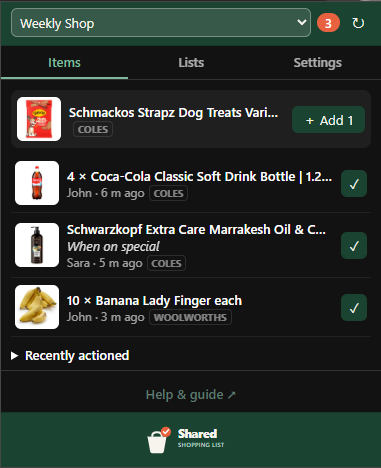
Use the in-page Add to shared list button instead when you want a different quantity, a note, or a different list from the one currently showing in the popup.
Doing the shopping
Open the extension popup to see the list. Each pending item shows its name, quantity, any note, who added it, and how long ago.
- Click an item to open its product page in a new tab — from there, add it to your cart as usual.
- Once it's in the cart, click ✓ Actioned on that item to mark it done.
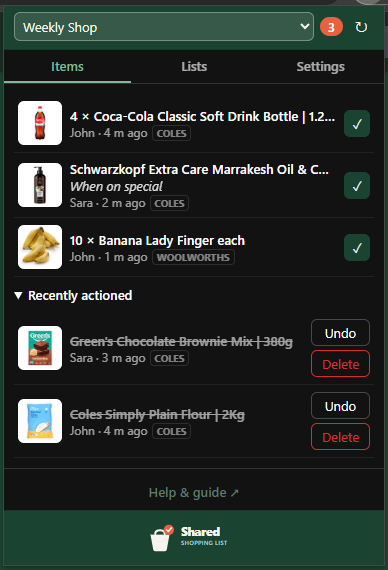
Actioned items move to a separate Actioned section so everyone can see what's already handled without losing the record.
Changed your mind?
In the Actioned section, each item has:
- Undo — puts it back on the pending list.
- Delete — removes it for good.
Tips
- Quantity and notes travel with the item, so "2 × milk — the lactose-free one" shows up exactly like that for the shopper.
- Everyone on the list sees the same items; there's no "my list" vs "your list".
- Nothing synced? See Troubleshooting.