Join a list
Someone sent you an invite link? You're a joiner — this is the whole setup.
1. Install the extension
If you haven't already, install the extension and pin it to your toolbar.
2. Set your name
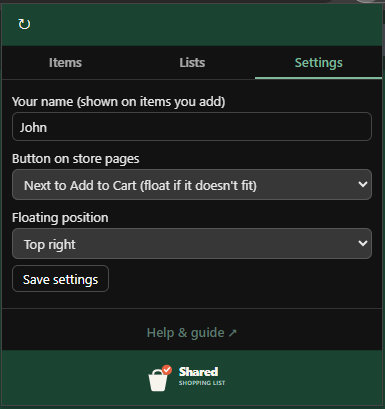
Open the extension popup (the toolbar icon) and go to the Settings tab. Enter a display name so the rest of the family can tell who added what.
3. Paste the invite link
Your invite looks like this:
https://api.sharedshoppinglist.xyz/join/AbC123XyZ890
You can join in either of two ways:
- Open the link in your browser. The page notices you have the extension installed and offers Add this list to my lists — one click and you're on it. (Invites for a self-hosted server show the manual steps below instead.)
- Paste it into the Paste invite link to join box on the popup's Lists tab and click Join. The page's Copy link button puts the invite on your clipboard ready for this.
The link carries both the server address and the list key, so you never have to type a server URL yourself.
4. Approve the one-time permission
The first time you connect, your browser asks whether the extension may contact your list's server. Approve it — this is how items sync. You'll only be asked once per server.
No harm done. Re-paste the invite (or open the link again) and approve the prompt this time. Details in Troubleshooting.
You're in
The list now appears in your popup. Head to Adding & actioning items to start filling it up.